
The world of computing has undergone tremendous transformations over the decades, yet few innovations have been as quietly revolutionary as the touchpad. This seemingly simple input device has fundamentally changed how we interact with our laptops and portable devices, offering an elegant solution to the challenge of mouse-free navigation. What fascinates me most about touchpads is their ability to translate the most natural human gesture – touch – into precise digital commands, creating an intuitive bridge between our physical movements and virtual environments.
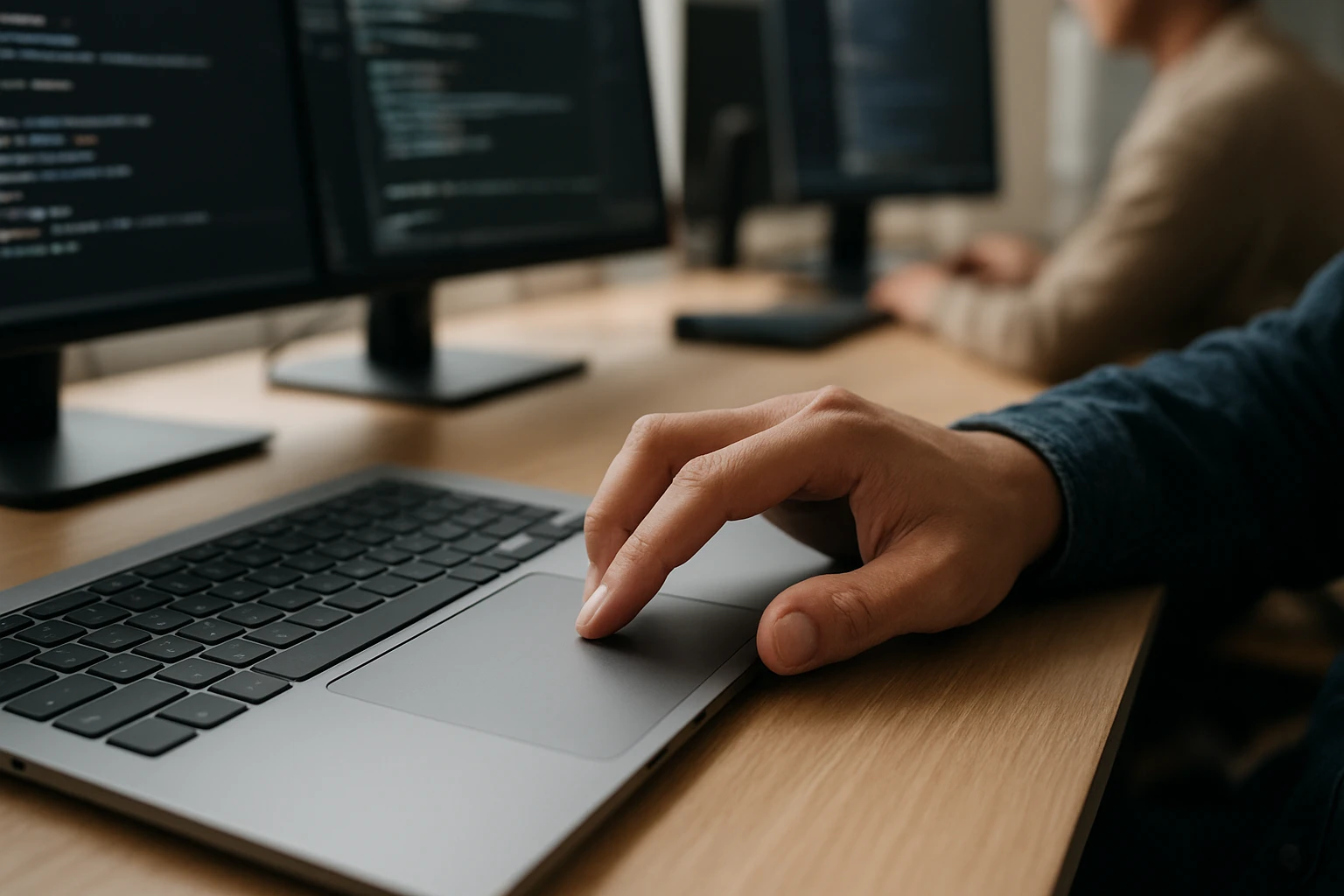
A touchpad, also known as a trackpad, is a pressure-sensitive surface that detects finger movements and converts them into cursor movements on a computer screen. This technology represents more than just a replacement for traditional mice; it embodies a philosophy of seamless integration between hardware and user experience. The touchpad's evolution reflects our changing relationship with technology, moving from mechanical precision to gesture-based fluidity, and this guide will explore multiple perspectives on its functionality, benefits, and optimization.
Throughout this comprehensive exploration, you'll discover the intricate mechanics behind touchpad technology, master essential gestures and customization options, troubleshoot common issues, and learn advanced techniques that can transform your computing experience. Whether you're a casual user seeking to improve efficiency or a power user looking to unlock hidden capabilities, this guide will provide practical insights and actionable strategies to maximize your touchpad's potential.
Understanding Touchpad Technology
Modern touchpads operate on sophisticated sensing technologies that have evolved significantly since their introduction. The most common type uses capacitive sensing, which detects changes in electrical fields when your finger approaches or touches the surface. This technology creates an invisible grid of sensors beneath the touchpad surface, allowing for precise tracking of finger movements and pressure variations.
The capacitive touchpad consists of multiple layers working in harmony. The top layer provides a smooth, durable surface for finger contact, while beneath lies a network of electrodes arranged in rows and columns. When your finger touches the surface, it disrupts the electrical field at specific intersection points, allowing the touchpad controller to calculate exact positioning and movement vectors.
"The beauty of modern input devices lies not in their complexity, but in how seamlessly they translate human intention into digital action."
Alternative technologies include resistive touchpads, which rely on pressure to bring two conductive layers into contact, and optical touchpads that use light sensors to track finger movements. However, capacitive technology has become the standard due to its superior accuracy, durability, and ability to support multi-touch gestures.
Multi-Touch Capabilities
Contemporary touchpads support multi-touch functionality, enabling simultaneous detection of multiple fingers. This capability unlocks a rich vocabulary of gestures that extend far beyond simple pointing and clicking. The touchpad controller processes multiple touch points in real-time, calculating their positions, movements, and interactions to interpret complex gesture patterns.
Multi-touch technology transforms the touchpad from a simple cursor control device into a versatile input interface. Two-finger gestures enable scrolling, zooming, and rotation, while three and four-finger gestures can trigger application switching, desktop navigation, and custom commands.
Essential Touchpad Gestures and Functions
Basic Navigation Gestures
Mastering fundamental touchpad gestures forms the foundation of efficient laptop usage. Single-finger movement controls cursor positioning with sensitivity that can be adjusted to match personal preferences and usage patterns. The relationship between finger movement distance and cursor travel can be calibrated for precision tasks or rapid navigation.
Tapping replaces traditional left-clicking, offering a lighter touch alternative that reduces finger fatigue during extended use. The tap sensitivity can be fine-tuned to prevent accidental activation while maintaining responsiveness. Corner taps often provide access to right-click functionality, though this varies by manufacturer and configuration.
Two-finger tapping typically triggers right-click menus, providing context-sensitive options without requiring special button presses. This gesture maintains the natural flow of touchpad interaction while accessing secondary functions.
Advanced Multi-Touch Gestures
Two-finger scrolling revolutionizes document and webpage navigation. Vertical movements scroll up and down, while horizontal movements enable side-to-side navigation in wide documents or image galleries. The scroll direction can be configured as natural (matching smartphone behavior) or traditional (matching mouse wheel behavior).
Pinch-to-zoom gestures bring smartphone-like functionality to laptop usage. Moving two fingers apart zooms in, while bringing them together zooms out. This gesture works across various applications, from web browsers to image editors, providing intuitive scaling control.
Three-finger gestures unlock powerful productivity features. Three-finger swipes can switch between applications, navigate browser tabs, or trigger custom commands. Three-finger taps might open notification centers or launch specific applications, depending on system configuration.
Four-finger gestures typically control desktop-level functions. Four-finger swipes can switch between virtual desktops, reveal all open windows, or return to the desktop. These gestures provide rapid access to system-level navigation without interrupting workflow.
Configuration and Customization Options
System-Level Settings
Modern operating systems provide extensive touchpad customization options through dedicated settings panels. These controls allow users to adjust sensitivity, gesture recognition, and response characteristics to match individual preferences and usage patterns.
Pointer speed adjustment affects how quickly the cursor moves in response to finger movements. Higher speeds enable rapid screen traversal with minimal finger movement, while lower speeds provide precision for detailed work. Finding the optimal balance often requires experimentation with different tasks and applications.
"Customization is not about complexity; it's about creating a tool that responds naturally to your unique way of working."
Tap sensitivity controls determine how light or firm a tap must be to register as a click. This setting prevents accidental clicks during typing while maintaining responsiveness for intentional interactions. Palm rejection sensitivity works alongside tap settings to ignore unintentional contact from resting palms or wrists.
Gesture Customization
Advanced users can customize gesture functions to match their specific workflows. Many systems allow reassignment of three and four-finger gestures to launch applications, execute commands, or trigger custom scripts. This customization transforms the touchpad into a personalized control interface.
Edge gestures utilize touchpad borders for special functions. Right-edge swipes might reveal notification panels, while left-edge swipes could switch between applications. Top and bottom edge gestures often control system functions like volume or brightness adjustment.
Gesture sensitivity adjustment ensures reliable recognition without false positives. Different gestures may require different sensitivity levels – scrolling might benefit from high sensitivity for smooth movement, while pinch-to-zoom might need moderate sensitivity to prevent accidental activation.
Third-Party Enhancement Software
Manufacturer-specific software often provides additional customization options beyond standard system settings. These applications may offer advanced gesture recognition, application-specific profiles, and enhanced precision controls.
Third-party utilities can extend touchpad functionality even further. These tools might add new gesture types, provide visual feedback for gesture training, or enable complex macro assignments to touchpad interactions.
| Customization Category | Available Options | Impact on User Experience |
|---|---|---|
| Sensitivity Settings | Pointer speed, tap pressure, palm rejection | Precision vs. speed balance, comfort during extended use |
| Gesture Assignment | Multi-finger gestures, edge swipes, custom commands | Workflow optimization, personal productivity enhancement |
| Application Profiles | App-specific settings, automatic switching | Context-appropriate behavior, seamless transitions |
| Visual Feedback | Gesture indicators, cursor enhancement | Learning assistance, accessibility improvement |
Benefits of Using a Touchpad
Portability and Integration
The touchpad's seamless integration into laptop design eliminates the need for external pointing devices, reducing travel requirements and setup complexity. This integration ensures consistent availability regardless of workspace constraints or environmental conditions.
Unlike external mice, touchpads never require additional desk space or flat surfaces. This independence from external conditions makes laptops truly portable, enabling productive work in cramped airplane seats, standing positions, or unconventional workspaces.
Battery life benefits significantly from touchpad usage, as no additional power is required for external wireless mice or dongles. The touchpad draws minimal power from the laptop's main battery, contributing to extended usage sessions without charging.
Ergonomic Advantages
Touchpad usage promotes better wrist positioning compared to traditional mouse usage. The central location reduces lateral wrist movement and maintains a more natural arm position during extended computing sessions.
"The most effective input device is one that disappears from conscious thought, allowing focus to remain on the task at hand."
Reduced repetitive strain results from the lighter touch requirements and varied finger movements possible with touchpad gestures. Unlike mouse clicking, touchpad taps require minimal force, reducing stress on finger joints and tendons.
Gesture variety prevents repetitive motion injuries by encouraging different finger combinations and movement patterns throughout the day. This natural variation contrasts with the repetitive clicking and scrolling motions required by traditional mice.
Enhanced Productivity Features
Multi-touch gestures enable rapid task switching and application management without keyboard shortcuts or menu navigation. Three and four-finger swipes provide instant access to productivity features that would otherwise require multiple steps.
Precision control in creative applications benefits from pressure sensitivity and fine motor control possible with direct finger contact. Drawing, photo editing, and design work can leverage the touchpad's sensitivity for detailed manipulation.
Workflow integration improves as touchpad gestures become muscle memory. Complex operations become single gesture commands, reducing cognitive load and maintaining focus on primary tasks rather than interface navigation.
Troubleshooting Common Touchpad Issues
Hardware-Related Problems
Physical contamination represents the most common touchpad malfunction. Dust, oils, and debris on the touchpad surface can interfere with capacitive sensing, causing erratic cursor behavior or gesture recognition failures. Regular cleaning with appropriate materials maintains optimal performance.
Moisture sensitivity affects capacitive touchpads significantly. High humidity, wet fingers, or liquid spills can cause unpredictable behavior or complete functionality loss. Understanding moisture's impact helps users adapt their usage patterns in different environmental conditions.
Driver corruption or outdated software often manifests as reduced functionality or complete touchpad failure. Regular driver updates ensure compatibility with operating system changes and access to new features or performance improvements.
Software Configuration Issues
Accidental setting changes frequently cause touchpad behavior that seems like hardware failure. Disabled gestures, altered sensitivity, or modified button assignments can dramatically change user experience without obvious cause.
"Most technology problems stem not from device failure, but from miscommunication between user intention and system configuration."
Conflicting software installations sometimes interfere with touchpad operation. Multiple touchpad utilities or incompatible drivers can create conflicts that prevent proper gesture recognition or cause system instability.
Application-specific behavior variations occur when individual programs override system touchpad settings. Understanding which applications modify touchpad behavior helps users adapt their techniques or adjust application-specific configurations.
Performance Optimization
Sensitivity calibration ensures optimal responsiveness across different usage scenarios. Regular recalibration accounts for changes in finger moisture, temperature, and pressure patterns that naturally occur throughout the day.
Background process interference can reduce touchpad responsiveness or accuracy. Identifying and managing resource-intensive applications improves overall system performance and touchpad reliability.
| Issue Type | Common Symptoms | Typical Solutions | Prevention Strategies |
|---|---|---|---|
| Hardware Problems | Erratic movement, dead zones, unresponsive areas | Cleaning, driver updates, hardware replacement | Regular maintenance, environmental awareness |
| Software Conflicts | Disabled features, unexpected behavior, system crashes | Driver reinstallation, setting reset, conflict resolution | Careful software management, regular backups |
| Performance Issues | Lag, poor accuracy, gesture failures | Calibration, optimization, resource management | System maintenance, performance monitoring |
Advanced Touchpad Techniques
Professional Workflow Integration
Power users can leverage advanced touchpad configurations to create efficient, personalized workflows. Custom gesture assignments enable rapid access to frequently used applications, documents, or system functions without interrupting primary tasks.
Application-specific profiles automatically adjust touchpad behavior based on the active program. Design software might benefit from high precision and pressure sensitivity, while web browsing could emphasize smooth scrolling and gesture navigation.
Macro integration connects touchpad gestures to complex command sequences. A single four-finger gesture might save the current document, switch to email, and compose a new message with predefined recipients and subject lines.
Creative Applications
Digital artists and designers can exploit touchpad pressure sensitivity for brush control and line variation. While not matching dedicated graphics tablets, modern touchpads provide sufficient sensitivity for sketching, note-taking, and basic illustration work.
"Innovation emerges when we push familiar tools beyond their intended boundaries, discovering new possibilities in everyday interactions."
Photo editing workflows benefit from precise gesture control for zooming, panning, and tool selection. Two-finger rotation gestures can adjust brush angles or image orientation, while pinch gestures provide intuitive scaling control.
Presentation control through touchpad gestures enables seamless slide navigation and annotation during live presentations. Custom gestures can advance slides, highlight content, or launch specific applications without visible interface interaction.
Gaming and Entertainment
Gaming applications increasingly support touchpad input for strategy games, puzzle games, and casual gaming. The precision and gesture variety possible with modern touchpads create engaging interaction models that complement traditional keyboard controls.
Media consumption benefits from gesture-based playback control. Two-finger swipes can skip tracks or chapters, while pinch gestures adjust volume or seek through timeline content. These controls maintain immersion without requiring visible interface elements.
Streaming and content creation workflows leverage touchpad gestures for scene switching, audio adjustment, and real-time effects control. The silent operation and precise control possible with touchpads make them ideal for live streaming environments.
Future Developments and Emerging Technologies
Haptic Feedback Integration
Emerging touchpad technologies incorporate haptic feedback to provide tactile responses to gestures and interactions. These systems simulate button clicks, texture sensations, and resistance feedback without mechanical components.
Force sensitivity advancement enables pressure-based commands and variable response characteristics. Different pressure levels can trigger different functions, adding a new dimension to gesture vocabulary without increasing complexity.
Biometric Integration
Fingerprint recognition integration transforms touchpads into security devices while maintaining primary input functionality. This dual-purpose design eliminates dedicated fingerprint readers while providing seamless authentication.
Palm recognition technology distinguishes between intentional touches and accidental contact with unprecedented accuracy. Advanced algorithms analyze touch patterns, pressure distribution, and movement characteristics to filter unwanted input.
"The future of human-computer interaction lies not in replacing natural gestures, but in enhancing them with intelligence and responsiveness."
Artificial Intelligence Enhancement
Machine learning algorithms increasingly personalize touchpad behavior based on individual usage patterns. These systems adapt sensitivity, gesture recognition, and response characteristics to match user preferences automatically.
Predictive gesture recognition anticipates user intentions based on context, application state, and historical patterns. This intelligence reduces the precision required for gesture execution while maintaining accurate command interpretation.
Context-aware functionality automatically adjusts touchpad behavior based on environmental conditions, application requirements, and user activity patterns. The touchpad becomes an adaptive interface that optimizes itself for current usage scenarios.
Accessibility and Inclusive Design
Assistive Technology Integration
Modern touchpads incorporate features designed to support users with varying physical capabilities. Adjustable sensitivity ranges accommodate different motor control levels, while alternative gesture mappings provide options for users with limited finger mobility.
Visual feedback systems help users with hearing impairments understand gesture recognition and system responses. Screen indicators, cursor modifications, and visual confirmations replace audio feedback traditionally used for interaction confirmation.
Voice control integration enables touchpad functionality for users who cannot physically interact with the surface. Spoken commands can trigger cursor movement, clicking, and gesture execution through accessibility software interfaces.
Universal Design Principles
Size and placement optimization ensures touchpad accessibility across different hand sizes and reach capabilities. Manufacturers increasingly consider ergonomic diversity in touchpad design and positioning decisions.
Gesture complexity scaling allows users to choose between simple and advanced interaction models based on their capabilities and preferences. Basic functionality remains accessible while advanced features provide enhanced productivity for capable users.
Learning assistance features help users develop touchpad skills through guided tutorials, visual feedback, and progressive complexity introduction. These systems reduce the learning curve associated with gesture-based interaction.
What is the difference between a touchpad and a trackpad?
Touchpad and trackpad are essentially the same device with different naming conventions. "Touchpad" is the more generic term used across the industry, while "trackpad" is primarily used by Apple for their laptop pointing devices. Both refer to the pressure-sensitive surface that translates finger movements into cursor control.
Why is my touchpad not working properly?
Common causes include outdated drivers, disabled touchpad settings, physical contamination, or software conflicts. Start by checking if the touchpad is enabled in system settings, then update drivers, clean the surface gently, and restart the computer. If problems persist, check for conflicting software or hardware issues.
How do I enable two-finger scrolling on my touchpad?
Access your system's touchpad settings through Control Panel (Windows) or System Preferences (Mac). Look for gesture or scrolling options and enable "two-finger scrolling" or similar settings. Some manufacturers provide dedicated software with more advanced scrolling customization options.
Can I use a touchpad for gaming?
While touchpads work for many games, they're generally less precise than mice for competitive gaming. However, they're suitable for strategy games, casual games, and turn-based titles. Some gaming laptops feature enhanced touchpads with improved precision and customizable sensitivity for gaming applications.
How do I adjust touchpad sensitivity?
Navigate to your system's touchpad settings and look for sensitivity, speed, or pointer precision controls. Adjust the slider to increase or decrease sensitivity based on your preference. Some systems offer separate sensitivity settings for different gestures and functions.
What should I do if my touchpad is too sensitive?
Reduce sensitivity in system settings, enable palm rejection features, and check for proper driver installation. Ensure your hands are clean and dry when using the touchpad, as moisture can cause erratic behavior. Consider adjusting tap sensitivity separately from movement sensitivity.
How do I clean my touchpad safely?
Use a slightly damp, lint-free cloth with water or isopropyl alcohol. Avoid harsh chemicals, excessive moisture, or abrasive materials. Turn off the laptop before cleaning and ensure the surface is completely dry before use. Regular cleaning prevents buildup that can interfere with functionality.
Can I disable the touchpad when using an external mouse?
Yes, most systems offer automatic touchpad disabling when an external mouse is connected. This setting is usually found in touchpad preferences under "disable when external mouse detected" or similar options. Some systems require manual enabling/disabling through function keys or software controls.