

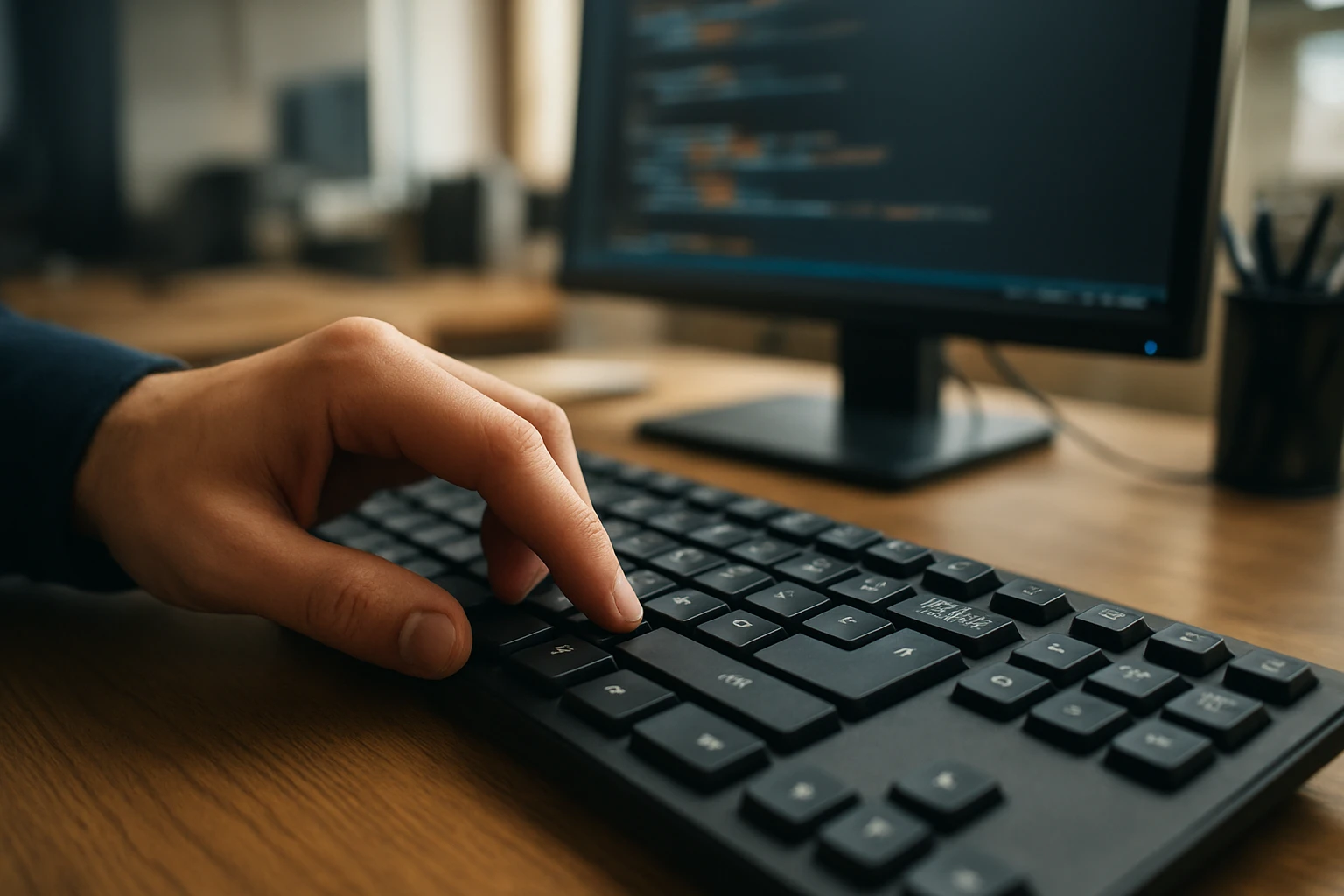
The shift key sits quietly on our keyboards, yet it wields tremendous power in our daily digital interactions. Most of us learned to use it for capital letters in elementary school, but this seemingly simple key has evolved into one of the most versatile tools in modern computing. Understanding its full potential can dramatically improve your productivity and efficiency across various applications and operating systems.
At its core, the shift key is a modifier key that temporarily changes the function of other keys when pressed simultaneously. However, this basic definition barely scratches the surface of what this key can accomplish. From text formatting and special character input to complex keyboard shortcuts and gaming controls, the shift key serves multiple roles that extend far beyond basic capitalization. This exploration will reveal both common and lesser-known applications that can transform how you interact with your computer.
Throughout this comprehensive examination, you'll discover practical techniques for maximizing shift key functionality, troubleshooting common issues, and implementing advanced strategies that professionals use daily. Whether you're a casual computer user looking to improve your typing skills or a power user seeking to optimize your workflow, understanding the shift key's complete range of capabilities will enhance your digital literacy and computing efficiency.
Basic Text Manipulation Functions
The shift key's most fundamental role involves text manipulation, starting with the universally recognized function of creating uppercase letters. When held down while pressing any letter key, it produces the capital version of that character. This basic function forms the foundation of proper written communication in digital formats.
Beyond simple capitalization, the shift key enables access to secondary characters on number and symbol keys. Pressing shift with the number 1 produces an exclamation mark, while shift with the semicolon creates a colon. These secondary functions are clearly marked on most keyboards, making them intuitive to locate and use.
The shift key transforms ordinary keystrokes into powerful tools for precise text control and formatting.
Text selection represents another crucial shift key function that many users underutilize. Holding shift while using arrow keys allows for precise character-by-character or line-by-line text selection. This method provides far greater control than mouse-based selection, particularly when working with large documents or when precision is essential.
The combination of shift with Home and End keys extends selection capabilities even further. Shift + Home selects from the cursor position to the beginning of the current line, while Shift + End selects to the line's end. These shortcuts prove invaluable for quickly selecting entire lines or large text blocks without mouse interaction.
Advanced Keyboard Shortcuts and Combinations
Professional users rely heavily on shift-based keyboard shortcuts to maintain workflow efficiency. The classic Shift + Tab combination allows reverse navigation through form fields, dialog boxes, and web page elements. This backward movement capability complements the standard Tab key's forward progression, providing complete navigational control.
Window management becomes significantly more efficient with shift-enhanced shortcuts. In many applications, Shift + F10 opens context menus without requiring mouse interaction. This functionality proves particularly valuable for users who prefer keyboard-only navigation or when working in environments where mouse usage is impractical.
File management operations benefit enormously from shift key combinations. Holding shift while clicking multiple files allows for range selection, choosing all items between the first and last clicked files. This method far exceeds individual file selection when working with large directories or organizing extensive file collections.
The shift key also modifies standard copy and paste operations in many applications. Some programs recognize Shift + Insert as an alternative paste command, while Shift + Delete functions as a cut operation. These alternative shortcuts provide redundancy and accommodate different user preferences or system configurations.
Operating System-Specific Applications
Windows Environment
Windows operating systems integrate the shift key into numerous system-level functions that enhance user productivity. The Windows key combined with shift creates powerful shortcuts for window management and system navigation. Shift + Windows + Left/Right Arrow moves active windows between multiple monitors, essential for multi-display setups.
Task switching becomes more sophisticated with shift modifications. Alt + Tab cycles forward through open applications, while Alt + Shift + Tab reverses the direction. This bidirectional navigation allows users to quickly return to previously accessed applications without cycling through the entire list.
File Explorer operations gain additional functionality through shift combinations. Holding shift while right-clicking files or folders reveals extended context menu options, including "Open command window here" and "Copy as path." These advanced options provide direct access to system tools and file path information.
Mastering shift-based shortcuts in Windows transforms routine tasks into streamlined, efficient operations.
The shift key also modifies Windows startup behavior. Holding shift during system startup can bypass certain startup programs or enter safe mode, depending on the specific Windows version and configuration. This functionality proves crucial for troubleshooting system issues or performing maintenance tasks.
macOS Integration
Apple's macOS implements shift key functionality with characteristic attention to detail and user experience. The Command + Shift combination forms the basis for numerous essential shortcuts, including Command + Shift + 3 for full-screen screenshots and Command + Shift + 4 for selective area captures.
Finder operations benefit from several shift-enhanced shortcuts. Command + Shift + G opens the "Go to Folder" dialog, allowing direct navigation to specific directory paths. Command + Shift + H quickly navigates to the user's home folder, while Command + Shift + A jumps to the Applications folder.
Text editing in macOS applications gains precision through shift combinations. Option + Shift + Left/Right Arrow selects text word by word, while Command + Shift + Left/Right Arrow selects entire lines. These shortcuts provide granular control over text selection without requiring mouse interaction.
The shift key also modifies macOS system behaviors in subtle but important ways. Holding shift while adjusting volume controls changes the volume in smaller increments, providing finer control over audio levels. Similarly, shift modifies brightness adjustments and other system controls for more precise configuration.
Gaming and Entertainment Applications
Modern gaming relies heavily on the shift key for character control and game mechanics. In first-person shooters, shift commonly serves as the sprint or run modifier, allowing players to move faster when held down. This function has become so standardized that most gamers instinctively associate shift with increased movement speed.
Strategy games often assign shift to unit queuing functions, allowing players to issue multiple commands that execute sequentially. Holding shift while clicking movement waypoints creates complex patrol routes or movement patterns that enhance tactical gameplay. This queuing capability separates novice players from experienced strategists.
Role-playing games frequently use shift for character stance modifications or combat modes. Shift might toggle between walking and running, activate stealth mode, or switch combat stances. These applications demonstrate how the shift key adapts to different gaming genres while maintaining intuitive functionality.
Gaming applications showcase the shift key's versatility in real-time, interactive environments where split-second decisions matter.
Streaming and content creation software incorporates shift into hotkey combinations for scene switching, audio control, and recording functions. Content creators rely on these shortcuts to maintain smooth broadcasts while managing complex technical setups. The shift key's modifier role makes it ideal for creating non-conflicting shortcut combinations.
Special Character Input and International Typing
International keyboard layouts utilize the shift key extensively for accessing accented characters and language-specific symbols. European keyboards often require shift combinations to produce characters like ñ, ü, or ç. Understanding these combinations is essential for multilingual typing and international communication.
Mathematical and scientific typing benefits from shift-based special character access. Shift combinations produce symbols like ±, ≠, and various mathematical operators that are essential for technical documentation. These symbols, while not visible on standard keyboard layouts, become accessible through specific shift combinations.
Programming languages require numerous special characters that rely on shift key access. Brackets, braces, pipes, and other programming symbols are typically accessed through shift combinations. Mastering these combinations significantly improves coding efficiency and reduces the need to search for special characters in character maps.
Currency symbols from various countries become accessible through shift combinations on international keyboard layouts. The shift key enables quick access to €, £, ¥, and other monetary symbols without requiring special software or character insertion tools.
Accessibility and Assistive Technology
The shift key plays a crucial role in computer accessibility, particularly for users with motor disabilities or limited dexterity. Sticky Keys functionality allows users to press shift once and have it remain active for the next keystroke, eliminating the need to hold multiple keys simultaneously.
Screen reader software often uses shift combinations for navigation commands. Shift + various arrow keys might jump between different page elements, headings, or form fields. These shortcuts enable visually impaired users to navigate complex documents and web pages efficiently.
Voice recognition software frequently incorporates shift commands for capitalization and punctuation control. Users can speak "shift" followed by a letter to produce uppercase characters, or use shift-based commands to insert specific punctuation marks. This integration makes voice-controlled typing more natural and efficient.
Accessibility features demonstrate how fundamental keyboard functions can be adapted to serve diverse user needs and abilities.
Alternative input devices, such as on-screen keyboards or switch-based systems, often provide virtual shift key functionality. These implementations ensure that users with physical limitations can access the full range of shift key functions through adapted interfaces.
Programming and Development Environments
Software development environments heavily integrate shift key functionality into their core operations. Code editors use shift combinations for block selection, allowing developers to select entire functions, classes, or code sections quickly. Shift + Ctrl + Arrow keys often select code blocks based on language syntax, understanding programming structure.
Debugging tools incorporate shift shortcuts for stepping through code execution. Shift + F11 might step out of the current function, while Shift + F10 could set breakpoints or execute specific debugging commands. These shortcuts enable rapid debugging workflows without interrupting concentration on code logic.
Version control integration within development environments uses shift combinations for advanced operations. Shift-enhanced shortcuts might access blame views, diff comparisons, or merge conflict resolution tools. These functions streamline collaborative development and code management processes.
Terminal and command-line environments recognize shift combinations for text selection and manipulation. Shift + Insert pastes clipboard content in many terminal applications, while Shift + Page Up/Down scrolls through command history or output. These functions bridge the gap between graphical and command-line interfaces.
Advanced Text Selection Techniques
Professional text editing requires sophisticated selection techniques that extend beyond basic click-and-drag operations. The shift key enables precise selection methods that accommodate complex document structures and formatting requirements. Understanding these techniques dramatically improves editing efficiency across all applications.
Word-level selection using Ctrl + Shift + Arrow keys allows editors to select entire words rather than individual characters. This method proves particularly valuable when working with technical documents or when precise word boundaries matter for formatting or deletion purposes.
Paragraph-level selection combines shift with other modifier keys to select entire paragraphs or document sections. These techniques enable rapid restructuring of long documents without losing formatting or requiring extensive re-typing.
Table and spreadsheet applications extend shift selection to rows, columns, and cell ranges. Holding shift while clicking cell references creates ranges that can be formatted, moved, or calculated as units. These selection methods form the foundation of efficient spreadsheet management and data analysis.
Troubleshooting Common Shift Key Issues
Hardware problems with shift keys can manifest in various ways, from complete non-responsiveness to inconsistent behavior. Physical debris under keys represents the most common cause of shift key malfunction. Regular cleaning with compressed air and appropriate cleaning solutions prevents most hardware-related issues.
Software conflicts occasionally cause shift key behavior anomalies. Certain applications or system utilities might capture shift key input, preventing normal operation in other programs. Identifying and resolving these conflicts requires systematic testing and sometimes temporary software removal.
Sticky Keys activation can confuse users unfamiliar with this accessibility feature. When accidentally enabled, Sticky Keys changes shift behavior, causing unexpected capitalization or symbol insertion. Understanding how to toggle this feature prevents confusion and restores normal operation.
Systematic troubleshooting approaches resolve most shift key issues quickly, restoring full keyboard functionality.
Driver issues with keyboard hardware sometimes affect shift key operation. Outdated or corrupted keyboard drivers can cause modifier keys to behave unpredictably. Updating drivers through device manager or manufacturer websites typically resolves these software-level problems.
Cross-Platform Compatibility Considerations
Different operating systems implement shift key functionality with subtle variations that can confuse users switching between platforms. Windows and macOS use different modifier key combinations, requiring adjustment periods when transitioning between systems. Understanding these differences prevents frustration and maintains productivity during platform changes.
Web applications often implement their own shift key interpretations that may override system defaults. Browser-based software might use shift combinations for application-specific functions that differ from standard operating system shortcuts. Testing shift behavior in new applications prevents unexpected results and workflow disruption.
Virtual machines and remote desktop environments sometimes modify shift key behavior due to keyboard mapping differences. These environments may require specific configuration to ensure proper shift key functionality, particularly when accessing international characters or special symbols.
Mobile device keyboards increasingly incorporate shift-like functionality through long-press gestures and virtual modifier keys. Understanding how touch interfaces adapt traditional shift key concepts helps users transition between physical and virtual keyboards seamlessly.
| Application Type | Primary Shift Functions | Advanced Features |
|---|---|---|
| Text Editors | Capitalization, Selection | Block selection, Multi-cursor |
| Web Browsers | Link modification, Tab control | Developer tools, Extension shortcuts |
| Gaming | Movement modifiers, Commands | Macro combinations, Streaming controls |
| Programming IDEs | Code selection, Debugging | Refactoring, Version control |
| Graphics Software | Tool modifiers, Constraints | Layer operations, Precision controls |
Professional Workflow Integration
Establishing consistent shift key usage patterns across all applications creates muscle memory that enhances overall productivity. Professional users develop standardized approaches to text selection, navigation, and command execution that transcend individual software applications. This consistency reduces cognitive load and allows focus on task content rather than interface mechanics.
Customization options in many professional applications allow users to modify or extend shift key functionality. Custom keyboard shortcuts often incorporate shift as a modifier to create unique combinations that don't conflict with existing shortcuts. This customization enables personalized workflows that match individual working styles and preferences.
Training programs for professional software often emphasize shift key techniques as fundamental skills. Mastering these techniques early in software adoption prevents the development of inefficient habits and establishes strong foundations for advanced feature usage. Professional certification programs frequently test shift key proficiency as part of overall software competency.
Professional workflows depend on consistent, efficient keyboard techniques that leverage every available tool, including comprehensive shift key mastery.
Documentation and training materials should always include shift key techniques relevant to specific software applications. Creating quick reference guides and cheat sheets helps teams maintain consistent practices and reduces the learning curve for new team members.
Future Developments and Emerging Trends
Touch-sensitive keyboards and adaptive interfaces represent the next evolution in shift key functionality. These technologies may provide haptic feedback or dynamic key labeling that changes based on current shift state. Such innovations could eliminate the guesswork associated with secondary character access and special symbol input.
Voice-controlled computing increasingly incorporates shift key concepts through spoken modifiers and commands. Future voice interfaces may recognize shift-like commands that modify subsequent voice input, creating more natural and efficient voice-to-text conversion processes.
Artificial intelligence integration in keyboards may predict shift key needs based on typing patterns and context. Smart keyboards could automatically capitalize proper nouns, suggest special characters, or provide contextual shortcuts that incorporate shift functionality without explicit user input.
Virtual and augmented reality interfaces must adapt traditional shift key concepts to three-dimensional input methods. These emerging platforms may use gesture-based modifiers or spatial positioning to replicate shift key functionality in immersive environments.
Optimization Strategies for Power Users
Advanced users often develop personal systems for maximizing shift key efficiency that go beyond standard documentation. These strategies involve creating mental models of shift combinations, practicing specific sequences until they become automatic, and identifying opportunities to replace mouse operations with keyboard alternatives.
Ergonomic considerations become crucial for users who rely heavily on shift key combinations. Proper hand positioning, keyboard selection, and typing technique prevent repetitive strain injuries while maintaining high productivity levels. Understanding ergonomic principles ensures sustainable long-term shift key usage.
Performance monitoring tools can help identify inefficient shift key usage patterns and suggest improvements. Some productivity software tracks keystroke patterns and recommends optimizations based on usage data. These insights help users refine their techniques and eliminate unnecessary movements.
Backup strategies for shift key functionality include learning alternative methods for accessing the same functions. Understanding multiple approaches to text selection, special character input, and command execution provides resilience when primary methods fail or when working with unfamiliar hardware.
| Efficiency Level | Techniques Mastered | Productivity Impact |
|---|---|---|
| Beginner | Basic capitalization, Simple selection | 20% improvement |
| Intermediate | Keyboard shortcuts, Range selection | 45% improvement |
| Advanced | Multi-application consistency, Custom shortcuts | 70% improvement |
| Expert | Ergonomic optimization, Context prediction | 90% improvement |
The shift key's evolution from simple modifier to comprehensive productivity tool reflects the broader development of human-computer interaction. As computing interfaces become more sophisticated, the fundamental principles demonstrated by shift key functionality continue to influence new input methods and interaction paradigms. Understanding these principles provides insights into both current computing efficiency and future interface development.
Modern productivity depends increasingly on seamless integration between different software applications and platforms. The shift key serves as a universal language that transcends individual applications, providing consistent functionality across diverse computing environments. This universality makes shift key mastery a transferable skill that enhances productivity regardless of specific software choices.
The relationship between hardware design and software functionality becomes evident through shift key implementation. Physical keyboard design influences how effectively users can access shift combinations, while software applications must balance feature richness with interface simplicity. This balance affects user adoption and long-term productivity gains.
Understanding fundamental tools like the shift key provides the foundation for adapting to future technological developments and maintaining productivity across changing computing environments.
Educational institutions and training programs increasingly recognize the importance of comprehensive keyboard skills in digital literacy curricula. The shift key represents a gateway to advanced computing techniques that separate casual users from power users. Systematic instruction in shift key techniques provides students with transferable skills that enhance their effectiveness across all digital platforms.
Professional development in technology fields often involves mastering increasingly complex keyboard shortcuts and interface techniques. The shift key serves as an entry point to this advanced functionality, demonstrating how simple tools can be combined to create sophisticated workflows. This understanding helps professionals adapt to new software and maintain competitive advantages in rapidly evolving technical environments.
What is the difference between left and right shift keys?
Both shift keys perform identical functions in most applications. Some advanced software or gaming applications may assign different functions to each shift key, but standard typing and basic shortcuts work the same regardless of which shift key you use.
Why does my shift key sometimes stick or behave strangely?
Sticky Keys accessibility feature might be activated, or physical debris could be interfering with key movement. Try pressing shift five times quickly to toggle Sticky Keys, or clean around the key with compressed air.
Can I customize shift key combinations in my applications?
Many applications allow custom keyboard shortcut configuration, including shift-based combinations. Check your software's preferences or settings menu for keyboard customization options.
How do I type special characters using the shift key on different keyboard layouts?
Special character access varies by keyboard layout and language settings. Consult your operating system's character map utility or keyboard layout documentation for specific combinations.
What should I do if one shift key works but the other doesn't?
This typically indicates a hardware problem with the non-functioning key. Try cleaning the key area first, then check if the issue persists across different applications. Hardware replacement may be necessary if cleaning doesn't resolve the problem.
Are there alternatives to the shift key for users with mobility limitations?
Yes, Sticky Keys allows single-press activation, on-screen keyboards provide virtual alternatives, and voice recognition software can handle capitalization commands. Many assistive technologies offer shift key functionality adaptations.