
The world of remote computing has transformed how we interact with technology, breaking down the barriers of physical location and opening up possibilities that seemed impossible just decades ago. Remote desktop technology represents one of the most significant advances in computer accessibility, allowing users to control and operate computers from virtually anywhere in the world. This technology has become particularly relevant in our increasingly connected society, where flexibility and mobility are no longer luxuries but necessities.
Remote desktop refers to a software feature or operating system capability that enables a user to connect to and control a computer remotely over a network connection. This powerful tool creates a virtual bridge between devices, allowing complete access to files, applications, and system functions as if sitting directly in front of the remote machine. The technology encompasses various protocols, applications, and methods that facilitate this seamless connection across different platforms and operating systems.
Through this comprehensive exploration, you'll discover the fundamental principles behind remote desktop technology, understand the various types and protocols available, learn about practical applications across different industries, and gain insights into security considerations and future developments. Whether you're a business professional seeking flexible work solutions, an IT administrator managing multiple systems, or simply curious about how this technology shapes our digital landscape, this guide will provide valuable knowledge and practical understanding.
Understanding Remote Desktop Technology
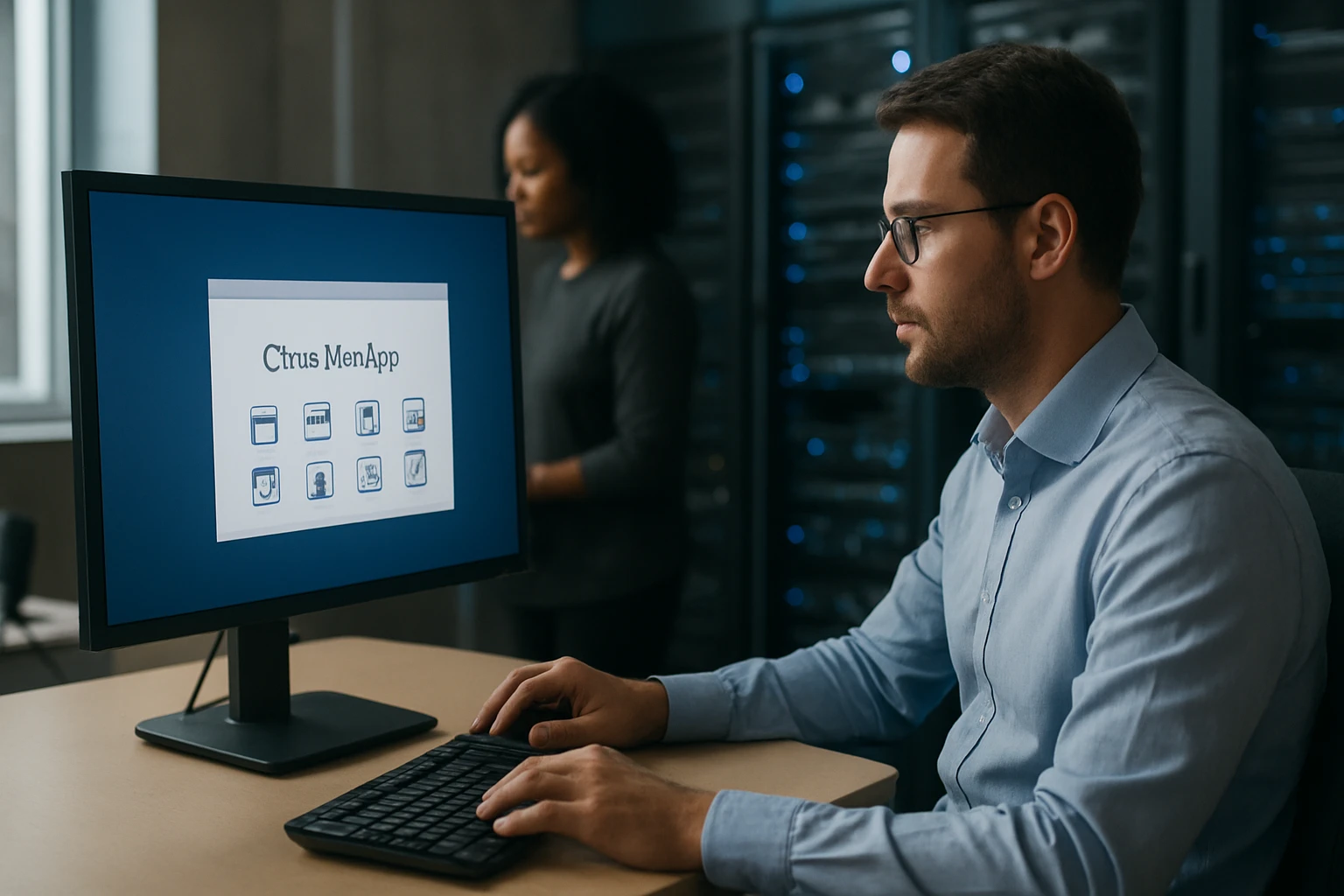
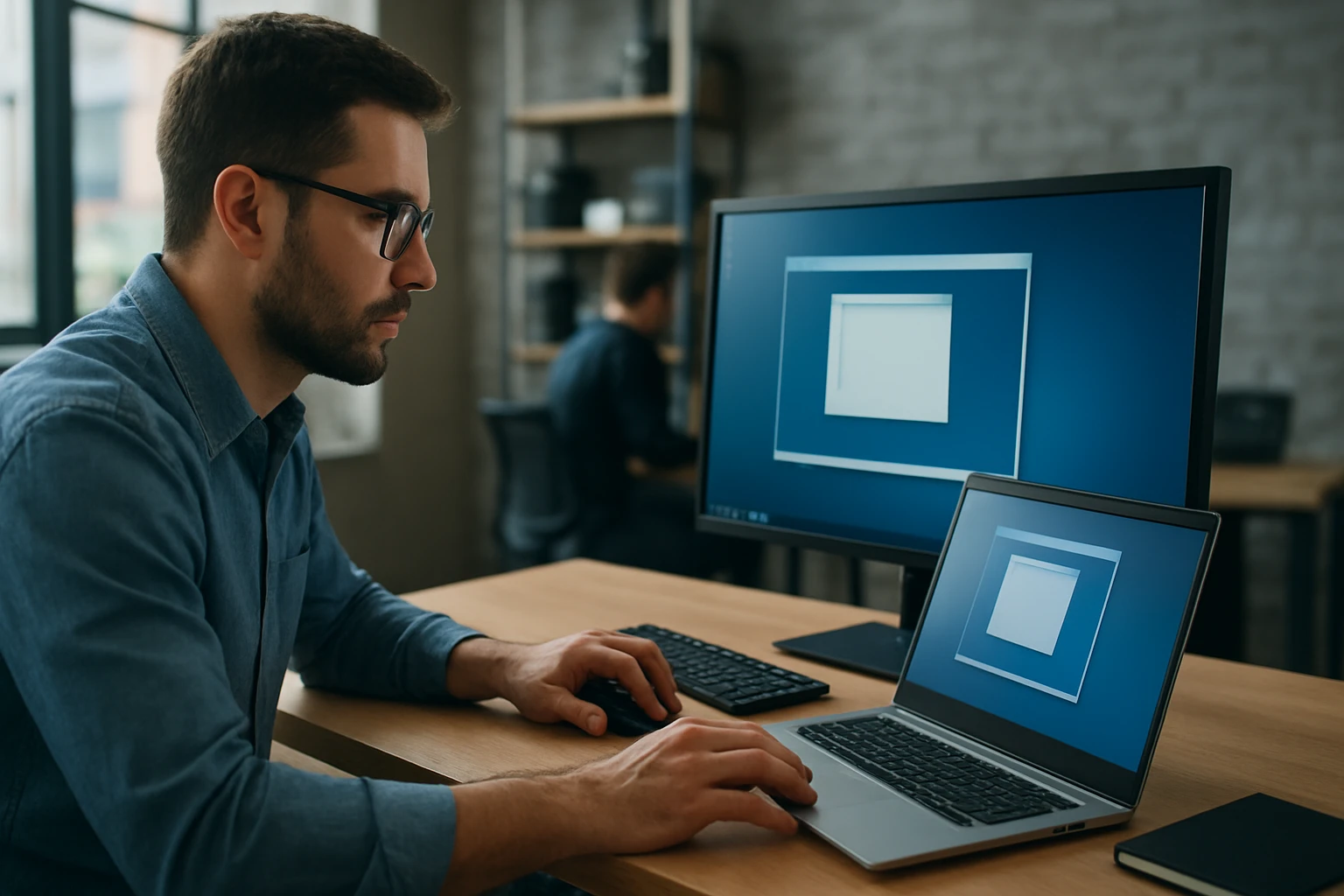
Remote desktop technology operates on a client-server architecture where one computer acts as the host (server) and another as the client. The host computer runs remote desktop software that listens for incoming connections, while the client computer uses compatible software to establish and maintain the connection. This relationship enables the client to send input commands like mouse clicks and keyboard strokes to the host, which then processes these commands and sends back screen updates.
The foundation of remote desktop functionality relies on network protocols that facilitate secure and efficient data transmission. These protocols handle everything from authentication and encryption to screen compression and bandwidth optimization. The most common protocols include Remote Desktop Protocol (RDP) developed by Microsoft, Virtual Network Computing (VNC) which offers cross-platform compatibility, and proprietary solutions like TeamViewer's protocol.
"The true power of remote desktop technology lies not just in accessing distant computers, but in fundamentally changing how we think about workspace boundaries and digital collaboration."
Modern remote desktop solutions have evolved far beyond simple screen sharing. Today's implementations include advanced features such as multi-monitor support, audio redirection, printer mapping, and clipboard synchronization. These enhancements create an experience that closely mimics local computer usage, making remote work more productive and intuitive.
Core Components and Architecture
Network Infrastructure Requirements
Remote desktop connections depend heavily on network infrastructure quality and configuration. Bandwidth requirements vary significantly based on usage patterns, with basic administrative tasks requiring minimal data transfer while graphics-intensive applications demand substantial bandwidth. Latency plays a crucial role in user experience, with delays exceeding 150 milliseconds becoming noticeable and potentially frustrating for users.
Network security considerations include firewall configuration, port management, and VPN integration. Most remote desktop protocols use specific ports that must be properly configured and secured to prevent unauthorized access. Many organizations implement VPN connections as an additional security layer, creating encrypted tunnels for remote desktop traffic.
Quality of Service (QoS) settings can prioritize remote desktop traffic to ensure consistent performance even during periods of high network utilization. This becomes particularly important in business environments where multiple users may be accessing remote systems simultaneously.
Authentication and Security Mechanisms
Authentication represents the first line of defense in remote desktop security. Modern systems support multiple authentication methods including username/password combinations, multi-factor authentication, smart cards, and biometric verification. These layered approaches significantly reduce the risk of unauthorized access while maintaining user convenience.
Encryption protocols protect data transmission between client and server, with most modern implementations using industry-standard encryption algorithms. End-to-end encryption ensures that even if network traffic is intercepted, the data remains unreadable to unauthorized parties.
Session management controls how connections are established, maintained, and terminated. Advanced systems include features like session timeouts, concurrent connection limits, and detailed logging for security auditing purposes.
Types of Remote Desktop Solutions
| Solution Type | Best For | Key Features | Typical Use Cases |
|---|---|---|---|
| Built-in OS Solutions | Basic remote access needs | Native integration, no additional software | Home users, simple business scenarios |
| Third-party Commercial | Professional environments | Advanced features, dedicated support | Business operations, IT management |
| Open Source | Customizable implementations | Cost-effective, flexible configuration | Educational institutions, tech-savvy users |
| Cloud-based Services | Scalable deployments | Managed infrastructure, global accessibility | Enterprise solutions, temporary access needs |
Built-in Operating System Solutions
Most modern operating systems include native remote desktop capabilities. Microsoft Windows features Remote Desktop Connection, which provides robust functionality for Windows-to-Windows connections. macOS includes Screen Sharing through its built-in VNC implementation, while Linux distributions often include various remote access tools depending on the desktop environment.
These built-in solutions offer the advantage of seamless integration with the operating system's security and user management systems. They typically require minimal configuration for basic functionality and don't introduce additional software dependencies or licensing costs.
However, native solutions may have limitations in terms of cross-platform compatibility and advanced features. They're often optimized for specific use cases and may not provide the flexibility required for complex business environments.
Third-Party Commercial Solutions
Commercial remote desktop solutions offer enhanced features, professional support, and often superior user experiences compared to built-in alternatives. These solutions typically provide cross-platform compatibility, allowing connections between different operating systems without compatibility issues.
Popular commercial solutions include comprehensive management tools, detailed reporting capabilities, and integration with existing IT infrastructure. They often include features like unattended access, file transfer capabilities, and remote printing that extend beyond basic screen sharing.
"Commercial remote desktop solutions bridge the gap between basic functionality and enterprise requirements, offering the reliability and features that businesses depend on for critical operations."
The investment in commercial solutions often pays dividends through increased productivity, reduced support costs, and enhanced security features that protect valuable business data and systems.
Open Source Alternatives
Open source remote desktop solutions provide cost-effective alternatives with the flexibility to customize and modify the software according to specific requirements. Solutions like TightVNC, RealVNC, and Apache Guacamole offer robust functionality without licensing fees.
These solutions particularly appeal to educational institutions, small businesses with technical expertise, and organizations that require extensive customization. The open source nature allows for community-driven development and rapid bug fixes.
However, open source solutions may require more technical expertise to implement and maintain. Support typically comes from community forums rather than dedicated customer service teams, which may not meet the needs of all organizations.
Remote Desktop Protocols Deep Dive
Remote Desktop Protocol (RDP)
Microsoft's Remote Desktop Protocol has become one of the most widely adopted standards for remote desktop connections. RDP operates on port 3389 by default and provides comprehensive functionality including audio redirection, printer mapping, and clipboard sharing. The protocol has evolved through multiple versions, with each iteration adding enhanced security features and improved performance.
RDP's strength lies in its tight integration with Windows environments and its ability to handle multiple simultaneous connections efficiently. The protocol supports various authentication methods and encryption levels, making it suitable for both casual and enterprise use.
Recent versions of RDP include support for modern display technologies, multi-touch input, and improved bandwidth utilization. These enhancements make RDP particularly effective for graphics-intensive applications and high-resolution displays.
Virtual Network Computing (VNC)
VNC represents a platform-independent approach to remote desktop access, using the Remote Frame Buffer (RFB) protocol to transmit screen updates and user input. Unlike RDP, VNC works across different operating systems and hardware platforms, making it an excellent choice for heterogeneous environments.
The VNC protocol operates by capturing screen contents on the server and transmitting compressed image data to the client. This approach ensures compatibility but may result in higher bandwidth usage compared to more sophisticated protocols that understand application-level changes.
Various VNC implementations offer different feature sets and performance characteristics. Some focus on security enhancements, while others prioritize speed and efficiency for specific use cases.
Proprietary Protocols
Many commercial remote desktop solutions use proprietary protocols optimized for specific use cases and performance requirements. These protocols often incorporate advanced compression algorithms, adaptive quality settings, and specialized features that aren't available in standard protocols.
Proprietary protocols can offer significant advantages in terms of performance, security, and functionality. They're typically designed to work optimally with the vendor's software ecosystem and may include features like intelligent bandwidth adaptation and advanced security measures.
However, the proprietary nature of these protocols can create vendor lock-in situations and may limit interoperability with other systems and solutions.
Setting Up Remote Desktop Connections
Windows Remote Desktop Configuration
Setting up Windows Remote Desktop involves enabling the feature through System Properties and configuring appropriate user permissions. The process requires administrative privileges and careful attention to security settings to prevent unauthorized access.
Network configuration includes ensuring proper firewall settings and, if necessary, configuring port forwarding on routers for external access. Windows Defender Firewall automatically creates appropriate rules when Remote Desktop is enabled, but additional network devices may require manual configuration.
User account configuration involves adding users to the Remote Desktop Users group or granting specific remote login permissions. Strong password policies become particularly important when enabling remote access capabilities.
Cross-Platform Setup Considerations
Connecting between different operating systems requires careful selection of compatible protocols and software solutions. VNC-based solutions often provide the most reliable cross-platform compatibility, while some commercial solutions offer native clients for multiple operating systems.
Configuration complexity increases when connecting between different platforms due to varying security models, user account systems, and network configurations. Testing connections thoroughly before deploying in production environments helps identify and resolve compatibility issues.
"Cross-platform remote desktop setup requires patience and attention to detail, but the flexibility it provides makes the effort worthwhile for diverse computing environments."
Documentation of configuration steps and settings becomes crucial for maintaining and troubleshooting cross-platform remote desktop deployments, especially in environments with multiple operating systems and user requirements.
Security Considerations and Best Practices
Network Security Implementation
Securing remote desktop connections requires a multi-layered approach that addresses network, application, and user-level security concerns. Network-level security begins with proper firewall configuration, limiting remote desktop access to specific IP addresses or network ranges when possible.
VPN integration provides an additional security layer by creating encrypted tunnels for remote desktop traffic. This approach effectively places remote users on the internal network while maintaining strong encryption and authentication requirements.
Network segmentation can isolate systems that require remote access, limiting the potential impact of security breaches. This strategy involves creating separate network zones for remote-accessible systems and implementing strict access controls between network segments.
Authentication and Access Control
Strong authentication mechanisms form the foundation of remote desktop security. Multi-factor authentication significantly reduces the risk of unauthorized access by requiring multiple forms of verification beyond simple passwords.
Account lockout policies help prevent brute-force attacks by temporarily disabling accounts after multiple failed login attempts. These policies must balance security requirements with user convenience to avoid impacting legitimate users.
Regular review and updating of user permissions ensures that remote access rights remain appropriate as roles and responsibilities change within organizations. Automated tools can help manage user accounts and permissions at scale.
Monitoring and Auditing
Comprehensive logging of remote desktop connections provides valuable security information and helps detect suspicious activities. Log analysis should include connection attempts, successful logins, session durations, and any unusual access patterns.
Real-time monitoring systems can alert administrators to potential security incidents, allowing for rapid response to threats. These systems should integrate with existing security infrastructure and incident response procedures.
| Security Measure | Implementation Level | Effectiveness | Complexity |
|---|---|---|---|
| Strong Passwords | User | Medium | Low |
| Multi-Factor Authentication | System | High | Medium |
| VPN Integration | Network | High | High |
| Network Segmentation | Infrastructure | Very High | Very High |
| Session Monitoring | System | Medium | Medium |
| Regular Audits | Process | High | Medium |
Regular security audits help identify vulnerabilities and ensure that security measures remain effective against evolving threats. These audits should include penetration testing, configuration reviews, and user access verification.
Common Applications and Use Cases
Business and Enterprise Scenarios
Remote desktop technology has become integral to modern business operations, enabling flexible work arrangements and efficient IT management. Help desk support teams use remote desktop connections to troubleshoot user issues without physical presence, significantly reducing response times and travel costs.
System administration tasks benefit enormously from remote desktop capabilities, allowing IT professionals to manage servers and workstations from centralized locations. This approach improves efficiency while reducing the need for physical access to distributed systems.
Software development teams leverage remote desktop connections to access development environments, test systems, and collaborative tools regardless of their physical location. This flexibility supports distributed development practices and enables access to specialized hardware or software configurations.
Educational Applications
Educational institutions use remote desktop technology to provide students with access to specialized software and computing resources. This approach eliminates the need for expensive software licenses on every student device while ensuring consistent computing environments.
Distance learning programs rely heavily on remote desktop capabilities to deliver hands-on technical training. Students can access laboratory environments and specialized equipment remotely, expanding educational opportunities beyond traditional classroom boundaries.
"Educational applications of remote desktop technology democratize access to expensive software and specialized computing resources, leveling the playing field for students regardless of their personal device capabilities."
Administrative functions in educational settings benefit from remote desktop technology through centralized management of computer labs, library systems, and administrative workstations.
Personal and Home Use
Home users employ remote desktop technology to access personal computers while traveling, enabling continued productivity and access to personal files and applications. This capability has become particularly valuable for individuals who work from multiple locations.
Technical support for family members becomes more efficient through remote desktop connections, allowing technically proficient users to provide assistance without physical presence. This application has proven especially valuable for supporting elderly family members with computer issues.
Home automation and media server management represent emerging applications for remote desktop technology, enabling users to manage smart home systems and entertainment servers from anywhere.
Performance Optimization Strategies
Bandwidth Management
Effective bandwidth management ensures optimal remote desktop performance across various network conditions. Compression algorithms reduce the amount of data transmitted by identifying and eliminating redundant information in screen updates.
Adaptive quality settings automatically adjust image quality and frame rates based on available bandwidth and network conditions. This dynamic approach maintains usability even when network performance degrades.
Caching mechanisms store frequently accessed screen elements locally, reducing the need for repeated transmission of unchanged content. This optimization particularly benefits applications with static interface elements.
Latency Reduction Techniques
Minimizing latency involves optimizing both network paths and application behavior. Direct network connections when possible reduce the number of intermediate hops that can introduce delays.
Predictive algorithms anticipate user actions and pre-load likely screen updates, creating the perception of improved responsiveness even when network latency remains constant.
Local processing of certain interface elements reduces the need for round-trip communication with the remote system, improving the overall user experience for interactive applications.
Hardware Considerations
Client device capabilities significantly impact remote desktop performance, with factors like processing power, memory, and network interface quality affecting the user experience. Modern devices with hardware-accelerated graphics processing can provide smoother remote desktop sessions.
Server hardware optimization focuses on CPU performance, memory capacity, and network interface capabilities. Multiple concurrent remote desktop sessions place substantial demands on server resources, requiring careful capacity planning.
"Hardware optimization for remote desktop environments requires balancing performance requirements with cost considerations, ensuring that investments align with actual usage patterns and user expectations."
Storage performance becomes critical when multiple users access files and applications simultaneously through remote desktop connections. Solid-state drives and high-performance storage arrays can significantly improve response times.
Troubleshooting Common Issues
Connection Problems
Network connectivity issues represent the most common category of remote desktop problems. Systematic troubleshooting begins with verifying basic network connectivity using ping and traceroute tools to identify where connection failures occur.
Firewall and router configuration problems often prevent successful remote desktop connections. Checking port forwarding settings, firewall rules, and network address translation configurations helps identify and resolve these issues.
Authentication failures may result from expired passwords, disabled accounts, or incorrect permission settings. Verifying user account status and remote login permissions typically resolves these problems quickly.
Performance Issues
Slow remote desktop performance often stems from bandwidth limitations or network congestion. Monitoring network utilization and implementing quality of service controls can improve performance during peak usage periods.
Server resource constraints, including CPU utilization, memory usage, and storage performance, can significantly impact remote desktop responsiveness. Resource monitoring tools help identify bottlenecks and guide optimization efforts.
Client-side performance problems may result from outdated software, insufficient local resources, or conflicting applications. Regular maintenance and optimization of client systems contribute to better remote desktop experiences.
Audio and Display Problems
Audio redirection issues commonly occur when remote desktop software fails to properly configure audio devices or when network bandwidth limitations prevent adequate audio quality. Adjusting audio quality settings and verifying device configurations typically resolve these problems.
Display resolution and scaling problems can make remote desktop sessions difficult to use, particularly when connecting between devices with significantly different screen sizes or resolutions. Modern remote desktop solutions offer dynamic resolution adjustment and scaling options to address these challenges.
Multi-monitor support issues may prevent users from effectively utilizing multiple displays during remote desktop sessions. Proper configuration of multi-monitor settings on both client and server systems ensures optimal display functionality.
Future Trends and Developments
Cloud-Based Remote Desktop Services
Cloud computing continues to transform remote desktop technology by moving processing power and storage to distributed data centers. This approach eliminates the need for powerful local hardware while providing access to virtually unlimited computing resources.
Virtual Desktop Infrastructure (VDI) solutions represent a mature implementation of cloud-based remote desktop services, offering centralized management and enhanced security for enterprise environments. These solutions provide consistent user experiences across various devices and locations.
"The future of remote desktop technology lies in cloud-based solutions that combine the flexibility of remote access with the scalability and reliability of modern data centers."
Browser-based remote desktop clients eliminate the need for specialized software installation, enabling remote access from any device with a modern web browser. This approach significantly simplifies deployment and maintenance while expanding device compatibility.
Emerging Technologies Integration
Artificial intelligence and machine learning technologies are beginning to enhance remote desktop experiences through predictive caching, intelligent compression, and adaptive quality optimization. These technologies promise to improve performance while reducing bandwidth requirements.
Virtual and augmented reality integration represents an exciting frontier for remote desktop technology, potentially enabling immersive remote work experiences that more closely replicate physical presence.
Mobile device optimization continues to improve as smartphones and tablets become more powerful and capable. Touch-optimized interfaces and gesture recognition enhance the remote desktop experience on mobile platforms.
Security Evolution
Zero-trust security models are influencing remote desktop architecture by requiring continuous verification and validation of user access rather than relying on perimeter-based security approaches. This evolution enhances security while maintaining user productivity.
Blockchain technology may eventually provide decentralized authentication and session management capabilities, reducing dependence on centralized security infrastructure while improving transparency and auditability.
Quantum computing developments will eventually require updates to encryption protocols used in remote desktop connections, ensuring continued security against future computational threats.
What is remote desktop technology?
Remote desktop technology is a software feature that allows users to connect to and control a computer remotely over a network connection. It creates a virtual bridge between devices, enabling complete access to files, applications, and system functions as if sitting directly in front of the remote machine.
How secure are remote desktop connections?
Remote desktop security depends on proper implementation of authentication, encryption, and access controls. Modern solutions use industry-standard encryption, multi-factor authentication, and comprehensive logging to maintain security. However, proper configuration and regular security updates are essential for maintaining protection.
What are the bandwidth requirements for remote desktop?
Bandwidth requirements vary significantly based on usage patterns. Basic administrative tasks may require as little as 100-200 Kbps, while graphics-intensive applications can demand 1-5 Mbps or more. Most modern solutions include adaptive compression to optimize bandwidth usage.
Can remote desktop work across different operating systems?
Yes, many remote desktop solutions support cross-platform connectivity. VNC-based solutions offer broad compatibility, while commercial solutions often provide native clients for multiple operating systems including Windows, macOS, Linux, iOS, and Android.
What's the difference between remote desktop and screen sharing?
Remote desktop provides full control over the remote computer, allowing users to run applications, access files, and perform administrative tasks. Screen sharing typically focuses on viewing and basic interaction, often used for presentations or demonstrations rather than comprehensive computer control.
How many users can connect to one remote desktop simultaneously?
The number of simultaneous connections depends on the specific solution and licensing. Windows Remote Desktop Services supports multiple concurrent sessions, while basic Windows Remote Desktop allows only one active session. Commercial solutions often offer flexible licensing for multiple simultaneous users.