
The right-click menu has become such an integral part of our digital lives that most of us use it dozens of times each day without giving it a second thought. Yet this seemingly simple interface element represents one of the most powerful tools for streamlining computer workflows and accessing hidden functionality. Whether you're a casual user struggling with repetitive tasks or a power user seeking to optimize every interaction, understanding the full potential of context menus can transform how you navigate the digital world.
A context menu is an interactive interface element that appears when you right-click (or use equivalent gestures) on various objects within your computer's operating system or applications. This menu provides a curated list of actions and options that are specifically relevant to the item you've selected, offering shortcuts to common tasks and access to advanced features. We'll explore this topic from multiple angles – examining its technical foundations, practical applications, customization possibilities, and emerging trends that are reshaping how we interact with our devices.
Throughout this exploration, you'll discover practical techniques for leveraging context menus to reduce clicks, speed up workflows, and access powerful features you might not have known existed. From basic navigation shortcuts to advanced customization strategies, this comprehensive guide will equip you with the knowledge to make your computer use more efficient and intuitive than ever before.
Understanding the Core Functionality
Context menus operate on a fundamental principle of contextual relevance – they display only the actions that make sense for the specific item or location where you've right-clicked. This intelligent filtering prevents overwhelming users with irrelevant options while ensuring quick access to the most useful functions.
The menu system dynamically generates its contents based on several factors. The type of object selected determines the primary set of available actions. File types influence which applications appear in "Open with" options. System permissions affect which administrative functions are displayed. Current application state can enable or disable certain menu items.
"The beauty of contextual interfaces lies in their ability to present exactly what you need, precisely when you need it, without cluttering your workspace with irrelevant options."
Different operating systems implement context menus with varying approaches to organization and functionality. Windows emphasizes integration with file management and system utilities. macOS focuses on application-specific actions and system services. Linux distributions often provide extensive customization options through desktop environments.
Essential Navigation Techniques
File and Folder Operations
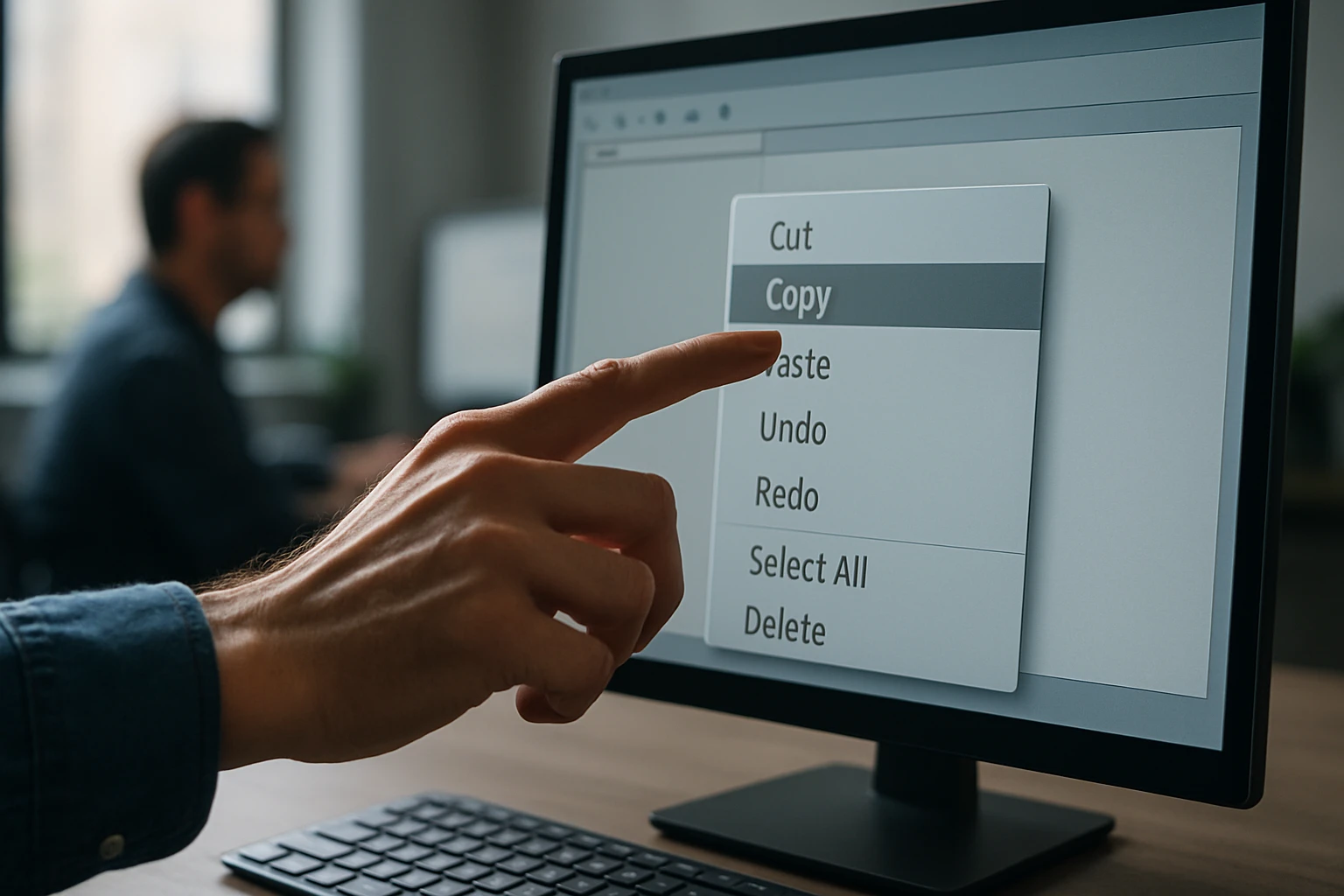
Right-clicking on files and folders reveals some of the most frequently used computer functions. The standard operations include copying, cutting, pasting, deleting, and renaming – actions that would otherwise require multiple steps through menu bars or keyboard shortcuts.
Advanced file operations become accessible through context menus as well. Creating shortcuts or symbolic links, changing file attributes, and accessing detailed properties all become single-click operations. Many users discover that context menus provide faster access to these functions than traditional menu navigation.
Desktop and Taskbar Interactions
The desktop context menu serves as a quick gateway to system customization and file creation. Right-clicking on empty desktop space typically provides options for changing wallpapers, creating new folders or documents, and accessing display settings.
Taskbar context menus offer different functionality depending on where you click. Right-clicking on running applications provides window management options like minimizing, maximizing, or closing. The system tray area often contains specialized menus for managing background applications and system services.
Application-Specific Implementations
Web Browser Context Menus
Modern web browsers have developed sophisticated context menu systems that adapt to different types of web content. Right-clicking on links reveals options for opening in new tabs or windows, copying URLs, or saving link destinations.
Image context menus provide functions for saving pictures, copying image addresses, or performing reverse image searches. Text selection menus offer translation services, search options, and sharing capabilities. These browser-specific implementations demonstrate how context menus can extend far beyond basic file operations.
Text Editors and Word Processors
Text editing applications showcase some of the most refined context menu implementations. Beyond basic cut, copy, and paste operations, these menus often include spell checking suggestions, formatting options, and insertion tools.
Advanced text editors may provide context-sensitive programming features like code completion, refactoring options, or debugging tools. The menu contents adapt based on the programming language being used and the specific code element under the cursor.
"Context menus in specialized applications often reveal the difference between basic functionality and professional-grade tools – they're where the real power features hide."
Customization and Personalization
Registry and System Modifications
Windows users can extensively customize their context menus through registry modifications. Adding new options, removing unwanted entries, and reorganizing menu structures all become possible with the right knowledge and tools.
Third-party utilities can simplify this customization process. Applications like FileMenu Tools, Ultimate Windows Tweaker, and Easy Context Menu provide graphical interfaces for modifying context menu behavior without directly editing system registries.
Third-Party Enhancement Tools
Specialized software can dramatically expand context menu functionality. PowerToys for Windows adds features like file hashing, image resizing, and PowerShell integration directly to context menus. Similar tools exist for other operating systems, each offering unique enhancements.
Shell extension programs can integrate cloud storage services, antivirus scanning, or specialized file processing tools directly into context menus. These integrations create seamless workflows that eliminate the need to open separate applications for common tasks.
| Operating System | Primary Context Menu Trigger | Secondary Options | Customization Level |
|---|---|---|---|
| Windows 10/11 | Right-click | Shift+Right-click for extended | High (Registry/Tools) |
| macOS | Right-click/Control+click | Option+Right-click for alternates | Medium (System Prefs) |
| Ubuntu/GNOME | Right-click | Middle-click for additional | High (Extensions) |
| KDE Plasma | Right-click | Alt+Right-click for window menu | Very High (Built-in) |
Advanced Features and Hidden Functionality
Keyboard Modifiers and Extended Menus
Holding modifier keys while accessing context menus often reveals additional options. Shift+Right-click in Windows Explorer provides extended file operations and command prompt access. Alt+Right-click may show different menu sets in certain applications.
These modifier combinations unlock professional-grade features that casual users rarely discover. System administrators particularly benefit from these extended options, which provide direct access to advanced system tools and diagnostic functions.
Context Menu Scripting and Automation
Power users can create custom scripts that integrate with context menu systems. Windows PowerShell scripts, batch files, and third-party automation tools can all be triggered through context menu selections.
This scripting capability transforms context menus from simple option lists into powerful automation triggers. Complex file processing, system maintenance tasks, and workflow automation all become accessible through right-click interactions.
"When you start viewing context menus as automation triggers rather than just option lists, you unlock a whole new level of computer efficiency."
Cross-Platform Considerations
Mobile and Touch Interfaces
Mobile operating systems have adapted context menu concepts for touch interfaces. Long-press gestures typically trigger context-sensitive options on smartphones and tablets. iOS and Android implement these differently, with varying approaches to menu presentation and organization.
Touch-optimized context menus often emphasize visual clarity and finger-friendly target sizes. The challenge lies in presenting comprehensive options within the constraints of smaller screens and touch-based interaction models.
Web Applications and Cloud Services
Modern web applications increasingly implement context menu functionality that rivals desktop applications. Google Workspace, Microsoft 365, and other cloud platforms provide right-click menus that offer file management, sharing, and collaboration options.
These web-based implementations demonstrate how context menu concepts translate across different computing environments. The challenge for developers involves creating consistent experiences that work across various browsers and input methods.
Performance and Efficiency Benefits
Workflow Optimization Strategies
Strategic use of context menus can dramatically reduce the number of mouse movements and clicks required for common tasks. Instead of navigating through multiple menu levels, users can access frequently needed functions with a single right-click.
Time-motion studies have shown that context menu usage can reduce task completion times by 20-40% for routine file management operations. The efficiency gains become more pronounced as users develop muscle memory for common menu locations.
Reducing Cognitive Load
Context menus reduce cognitive burden by presenting only relevant options for the current selection. This filtering eliminates decision paralysis that can occur when users face comprehensive menu systems with dozens of irrelevant choices.
The contextual nature of these menus also provides learning opportunities. Users naturally discover new features by exploring context menus for different types of objects, leading to gradual skill development without overwhelming complexity.
| Task Category | Traditional Method Clicks | Context Menu Clicks | Time Savings |
|---|---|---|---|
| File Copy/Paste | 6-8 clicks | 3 clicks | 60-70% |
| New Folder Creation | 4-5 clicks | 2 clicks | 50-60% |
| File Properties Access | 3-4 clicks | 2 clicks | 40-50% |
| Application Launch | 2-4 clicks | 2 clicks | 25-40% |
Troubleshooting Common Issues
Menu Performance Problems
Context menus can sometimes become slow or unresponsive due to problematic shell extensions or system conflicts. Identifying and disabling problematic extensions often resolves performance issues.
Registry corruption or conflicts between different customization tools can also impact context menu functionality. System file checker tools and registry cleaners may help resolve these issues, though careful backup procedures are essential before making system modifications.
Missing or Broken Menu Items
Context menu items may disappear or become non-functional due to software uninstallation, registry changes, or file association problems. Rebuilding file associations and re-registering shell extensions often restores missing functionality.
Third-party context menu managers can help diagnose and repair broken menu items. These tools provide visibility into which extensions are loaded and can disable problematic entries that cause system instability.
"The most common context menu problems stem from accumulated software installations over time – regular system maintenance prevents most issues before they become frustrating."
Security and Privacy Considerations
Malicious Context Menu Extensions
Context menu extensions can potentially pose security risks if they come from untrusted sources. Malicious extensions might capture sensitive information, modify files without permission, or provide backdoor access to systems.
Installing context menu enhancements only from reputable sources and regularly reviewing installed extensions helps maintain system security. Enterprise environments often implement group policies to control which context menu modifications are permitted.
Data Protection Implications
Some context menu features may transmit data to external services without clear user consent. Cloud integration features, online translation services, and web search functions might share selected content with third-party providers.
Understanding the privacy implications of different context menu features helps users make informed decisions about which functions to enable. Reading privacy policies for context menu enhancement software provides insight into data handling practices.
Future Trends and Developments
Artificial Intelligence Integration
Emerging context menu implementations are beginning to incorporate AI-powered suggestions and predictive functionality. These systems analyze user behavior patterns to surface the most likely needed actions at the top of context menus.
Machine learning algorithms can personalize context menu contents based on individual usage patterns, time of day, or current project context. This intelligent adaptation promises to make context menus even more efficient and relevant.
Voice and Gesture Controls
Next-generation interface technologies are exploring voice-activated context menus and gesture-based triggers. These developments could extend context menu concepts beyond traditional pointing devices to more natural interaction methods.
Virtual and augmented reality environments present new opportunities for context menu innovation. Three-dimensional context menus that appear around objects in virtual space could provide even more intuitive access to functionality.
"The future of context menus lies not just in what options they present, but in how intelligently they can predict and adapt to user needs before those needs are explicitly expressed."
Best Practices for Maximum Efficiency
Developing Muscle Memory
Consistent use of context menus for routine tasks helps develop muscle memory that dramatically speeds up computer interactions. Focusing on memorizing the position of frequently used menu items reduces the need to read through options each time.
Creating personal workflows that prioritize context menu usage over traditional menu navigation helps reinforce these efficient interaction patterns. Many users find that dedicating a week to conscious context menu usage permanently changes their computing habits.
Balancing Customization and Simplicity
While extensive customization options exist for context menus, maintaining simplicity often proves more effective than adding numerous specialized options. Overloaded context menus can become as cumbersome as the traditional menu systems they're meant to replace.
Regular review and cleanup of context menu customizations helps maintain optimal functionality. Removing unused extensions and organizing remaining options by frequency of use creates more efficient interaction patterns.
Integration with Modern Workflows
Cloud Storage and Collaboration
Modern context menus increasingly integrate with cloud storage services and collaboration platforms. Right-clicking on files can provide direct access to sharing options, version history, and collaborative editing features.
These integrations eliminate the need to open separate applications or web interfaces for common cloud operations. The seamless integration of local and cloud functionality through context menus represents a significant evolution in how we manage digital assets.
Development and Professional Tools
Professional software increasingly leverages context menus to provide quick access to specialized functions. Development environments, design applications, and data analysis tools all use context-sensitive menus to surface relevant professional features.
Understanding how to effectively use context menus in professional applications often distinguishes casual users from power users. These menus frequently provide access to advanced features that aren't available through standard menu systems.
"Professional software context menus often contain the features that separate good users from great ones – they're worth exploring even when you think you know an application well."
Context menus represent a fundamental evolution in computer interface design, transforming how we access functionality and navigate digital environments. Their power lies not just in providing shortcuts, but in creating more intuitive and efficient interaction patterns that adapt to user needs and contexts.
The key to maximizing context menu effectiveness involves understanding both the basic functionality and the advanced customization possibilities available across different platforms and applications. Whether you're seeking to speed up routine tasks or access professional-grade features, context menus provide a pathway to more efficient computing.
As technology continues to evolve, context menus will likely become even more intelligent and adaptive, incorporating AI-powered suggestions and cross-platform synchronization. By developing strong context menu habits now, you're building skills that will continue to pay dividends as these interface technologies advance and mature.
What is a context menu and how do I access it?
A context menu is a popup menu that appears when you right-click on objects in your computer interface. It provides relevant actions and options specific to the item you clicked on. Most computers support right-clicking with a mouse, while laptops often use two-finger tapping or dedicated right-click areas on trackpads.
Why don't I see the same options in every context menu?
Context menus are designed to show only relevant options for the specific item or location you've clicked. A text file will show different options than an image file, and empty desktop space will show different options than a selected folder. This contextual relevance prevents menu clutter and confusion.
Can I customize what appears in my context menus?
Yes, most operating systems allow context menu customization through various methods. Windows users can modify registry entries or use third-party tools like FileMenu Tools. Mac users can add services through System Preferences. Linux users often have extensive customization options depending on their desktop environment.
Are there keyboard shortcuts to access context menus?
Yes, most systems provide keyboard alternatives to right-clicking. Windows users can press the Menu key (if available) or Shift+F10. Mac users can use Control+click if right-clicking isn't available. Many applications also support application-specific keyboard shortcuts for context menu access.
What should I do if my context menus are slow or not working?
Slow context menus often result from problematic shell extensions or registry issues. Try disabling recently installed software, running system file checker tools, or using context menu management utilities to identify and remove problematic extensions. Restarting your computer can also resolve temporary conflicts.
Can context menus pose security risks?
Context menu extensions from untrusted sources can potentially pose security risks. Only install context menu enhancements from reputable developers, and regularly review installed extensions. Some context menu features may also share data with online services, so review privacy settings for cloud-integrated functions.